# Stories
#### Accessing Stories
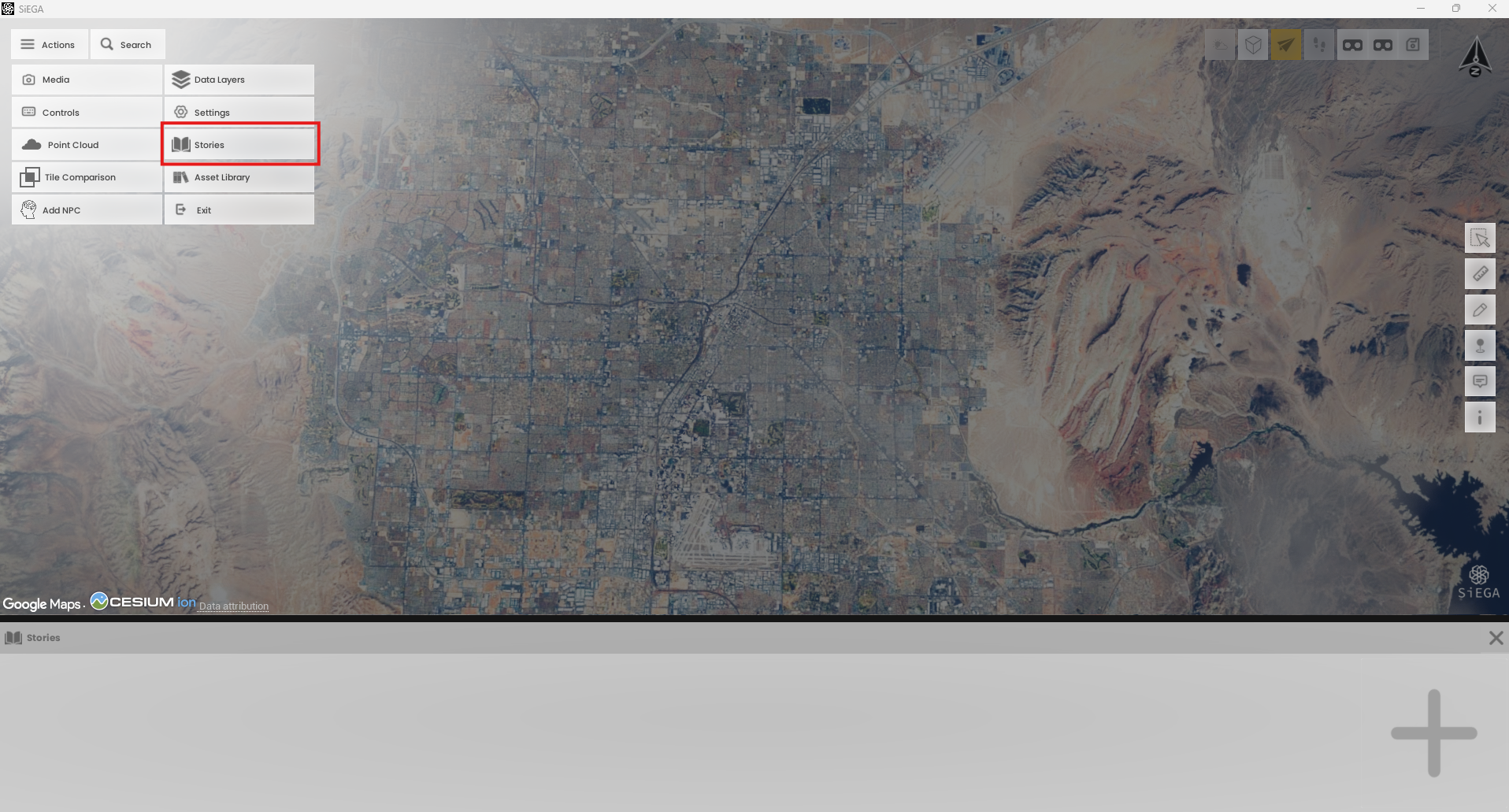
To access the stories feature, open the **Actions Menu** and click the **Stories** button. After clicking, a new window will appear at the bottom of the screen.
**Adding and Managing Stories**
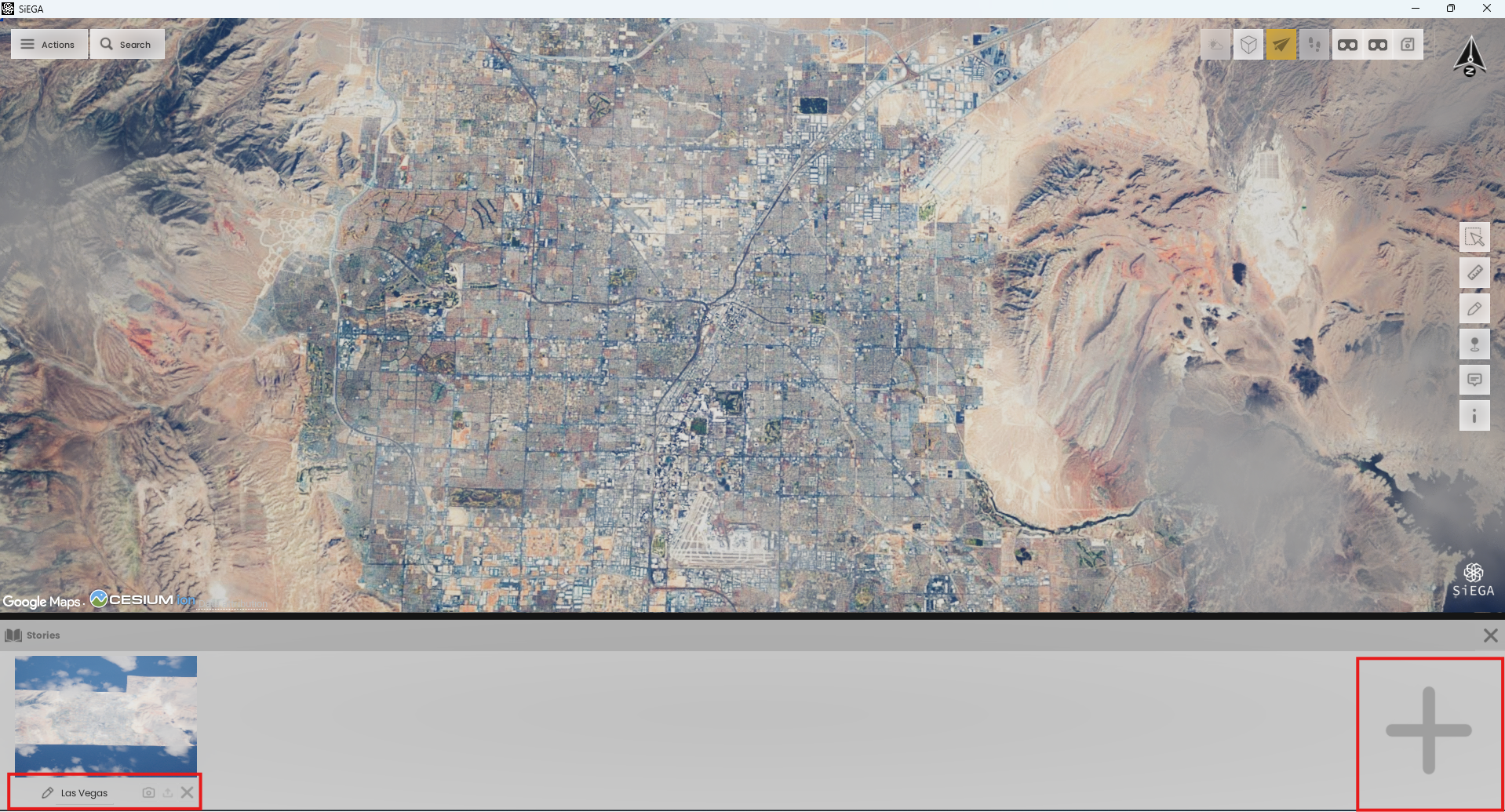
* **Add a New Story:** Click the plus button on the right side of the stories window.
* **Rename a Story:** Click the text box next to the pencil icon and type the new name.
* **Recapture Thumbnail:** Press the camera icon.
* **Delete a Story:** Press the X button.
> **Note:** The export feature is under development.
**Adding and Managing Slides**
1. Click on the story's thumbnail to open a new window on the screen's right side.
2. **Add Slides:** Click the highlighted plus icon to add a slide. You may give it a title and description.
3. **Manage Slides:**
* **Add More Slides:** Press the plus icon for additional slides.
* **Delete a Slide:** Click the trash icon to remove the current slide.
* **Navigate Slides:** Use the previous and next buttons to move between slides.
**Slideshow Functions**
* **Play Slideshow:** Click the play button to loop through all slides until you stop.
* **Configure Slide Duration:** By default, each slide is 6 seconds; customize to longer if desired.
* **Full Screen:** Click the full-screen button to hide the UI; move the mouse to restore it.
* **Page counter:** There is a page counter on the bottom right, above the next button